 Flickbar
Flick windows into place.
Swipe two fingers on a title bar to snap a Mac window to a half, a third or a quarter, fill the screen or send it to another display.
brew install --cask flickbar/tap/flickbarArrange windows without reaching for the keyboard
Your hand is already on the trackpad. Flickbar turns the title bar into a place to gesture, and leaves the rest of your scrolling alone.
Every common layout is one swipe
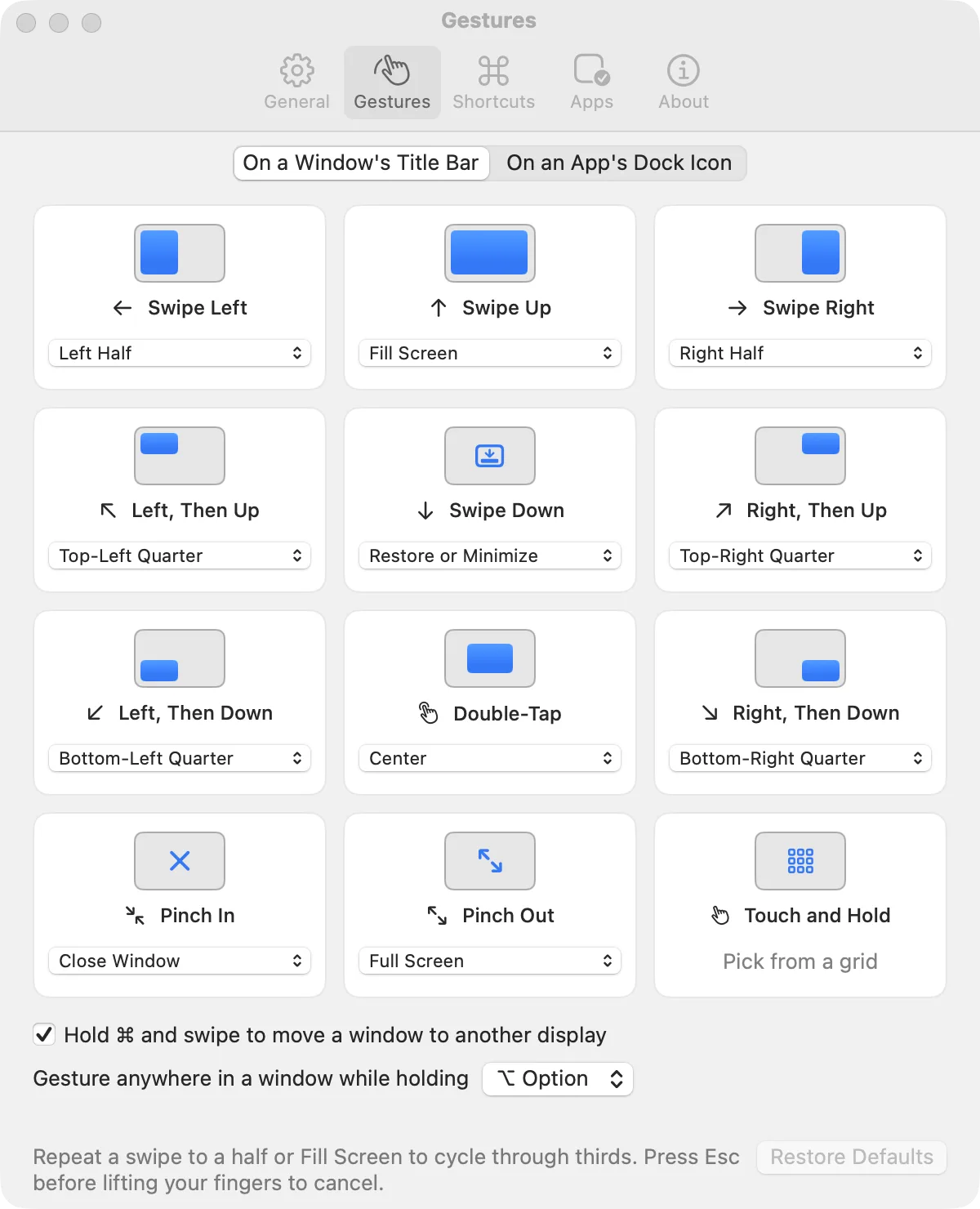
Swipe left or right for a half, then keep swiping the same way for two thirds and one third. Swipe up to fill the screen, down to put the window back how it was.
A highlight shows where the window will land while your fingers are down, and a light haptic tap confirms it. Press Esc before lifting to cancel.
A grid for everything in between
Rest two fingers on a title bar for a moment and a grid appears: three columns, each full height or split into a top and bottom half. Slide to a cell and lift to snap there.
The Dock listens too
Swipe up on an app’s Dock icon to show all of its windows, down to hide it, sideways to bring its next window forward, or pinch in to quit it. On a minimized window’s tile, any title-bar gesture brings it back and snaps it.
Set it up your way
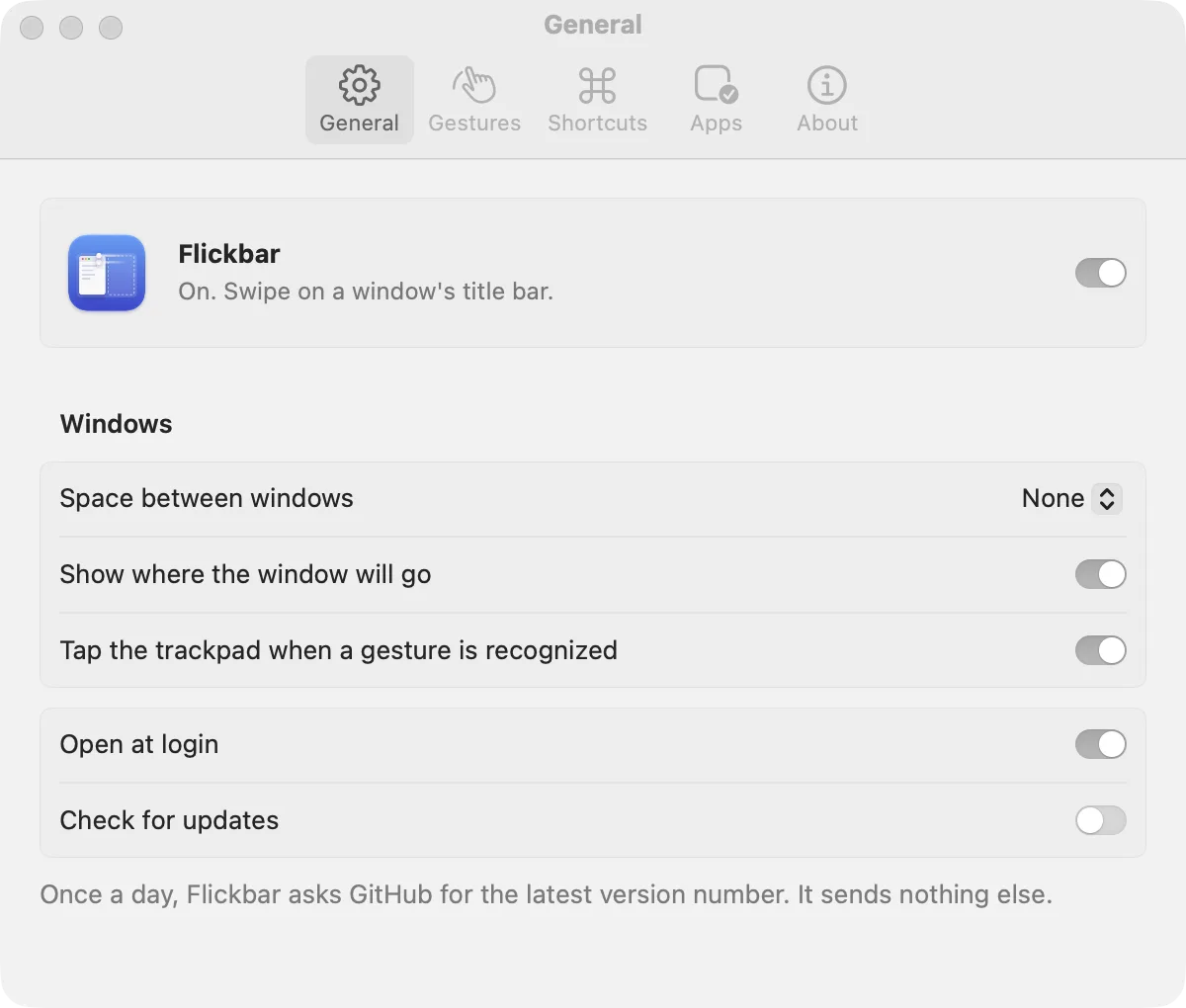
Choose what each gesture does, give any action a keyboard shortcut, add space between snapped windows, and turn gestures off in apps that need their title bars to themselves.
Hold ⌥ Option to gesture anywhere in a window, or ⌘ to send it to the display on that side.
Every gesture
Put the pointer on a window’s title bar or a Dock icon and use two fingers. Each of these can be remapped in Settings.
| Swipe left or right | Left or right half; repeat for ⅔, then ⅓ |
| Swipe sideways, then up or down | That quarter |
| Swipe up | Fill the screen; repeat for the middle third |
| Swipe down | Restore the earlier size, otherwise minimize |
| Double-tap | Center the window |
| Pinch out | Toggle full screen |
| Pinch in | Close the window |
| Hold ⌘ and swipe | Move to the display on that side |
| Touch, hold, then move | Pick a layout from the grid |
| Swipe up | Show all of the app’s windows |
| Swipe down | Hide the app |
| Swipe left or right | Bring the app’s next window to the front |
| Pinch in | Quit the app |
Every action can also have a keyboard shortcut. None are set at first, so Flickbar never takes over keys you already use.
Nothing leaves your Mac
No analytics, no account. The only network request is an optional daily check for a new version number.
Signed and notarized
Releases are signed with a Developer ID and notarized by Apple, so macOS opens them without a warning.
Open source
Made by Parsa Kamalipour and licensed under the GPL. Read the code, build it yourself, or send a pull request.
Questions
Is it really free?
Yes. There’s no trial, paid tier or account. Flickbar is free software under the GPL-3.0-or-later license.
Why does it ask for Accessibility access?
macOS requires it for any app that moves or resizes other apps’ windows. Flickbar uses it only to find the window or Dock icon under the pointer and act on it when you gesture or press a shortcut.
Will it get in the way of normal scrolling?
No. Only two-finger gestures that start on a title bar or Dock icon are used. All other scrolling and zooming passes through untouched, and mouse wheels are ignored.
Do I need a trackpad?
For gestures, yes. Keyboard shortcuts work with any keyboard, so you can use Flickbar with a mouse too.
Pinch or double-tap doesn’t work
Turn on Zoom in or out and Smart zoom in System Settings → Trackpad → Scroll & Zoom. macOS only sends those gestures when they’re enabled.
How do I update or uninstall it?
With Homebrew, run brew upgrade --cask flickbar or brew uninstall --cask flickbar. Otherwise turn on Check for updates in Settings, or quit Flickbar from its menu bar icon and move it to the Trash.
Give your title bars something to do
Free, open source and ready in a minute.
brew install --cask flickbar/tap/flickbar